> ## Documentation Index
> Fetch the complete documentation index at: https://docs.thanx.com/llms.txt
> Use this file to discover all available pages before exploring further.
# Azure Blob Storage
> Configuring your Azure Blob Storage destination.
## Step 1: Create Azure storage account
1. In the Azure portal, navigate to the **Storage accounts** service and click **+ Create**.
2. In the "Basics" tab of the "Create a storage account" form, fill in the required details.
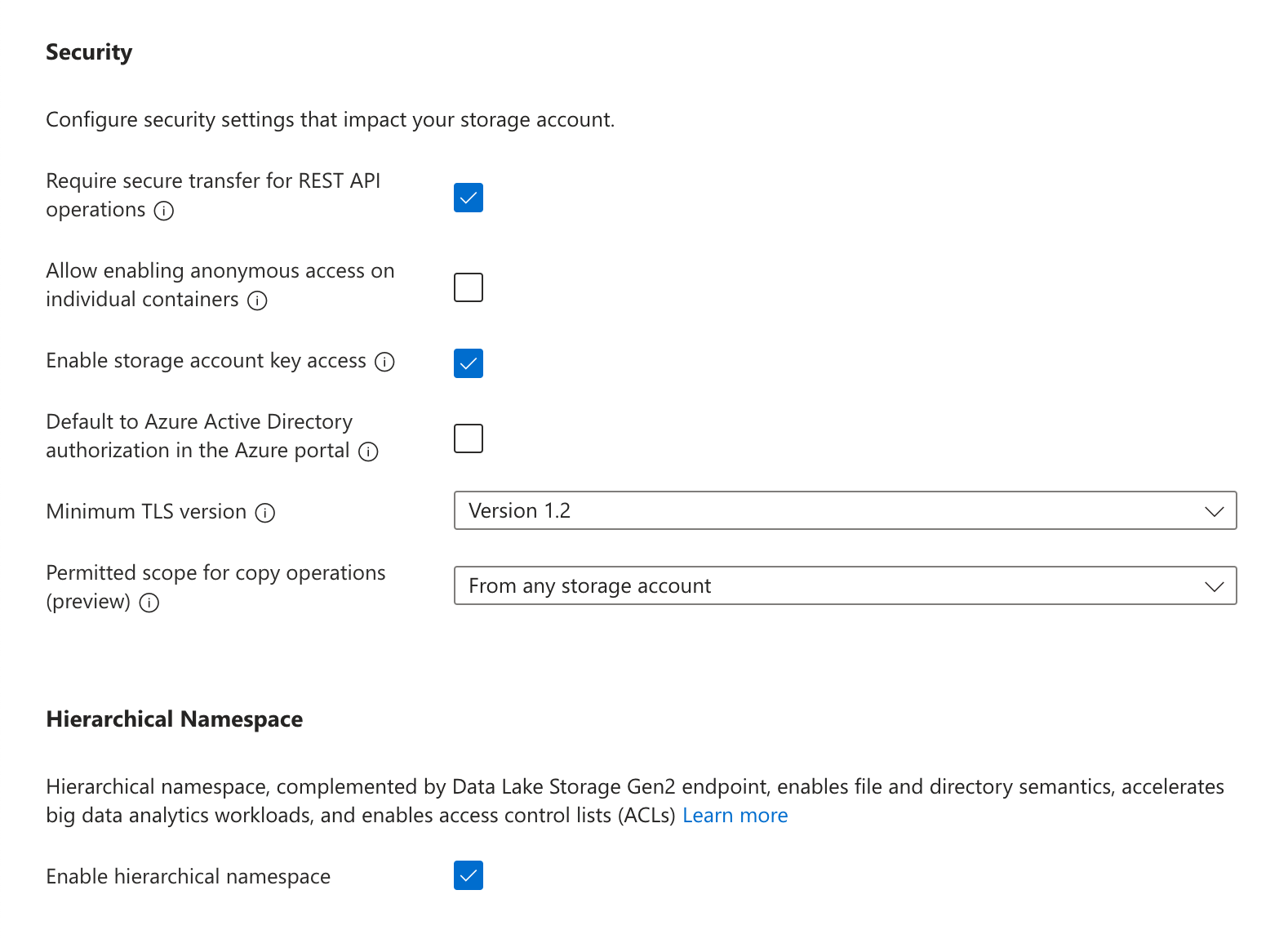
3. In the "Advanced" settings, under "Security" make sure **Enable storage account key access** is turned on. You may turn off (deselect) "Allow enabling public access on containers". Under "Data Lake Storage Gen2", select **Enable hierarchical namespace**.
 4. In the "Networking" settings, you may limit "Network access" to either **Enable public access from all networks** or **Enable public access from selected virtual networks and IP addresses**. If the latter is selected, be sure to add the service's static IP to the address range of the chosen virtual network. All other settings can use the default selections.
**Network allowlisting**
Cloud-hosted (US): `35.192.85.117/32`
Cloud-hosted (EU): `104.199.49.149/32`
If private-cloud or self-hosted, contact your Thanx representative for the static egress IP.
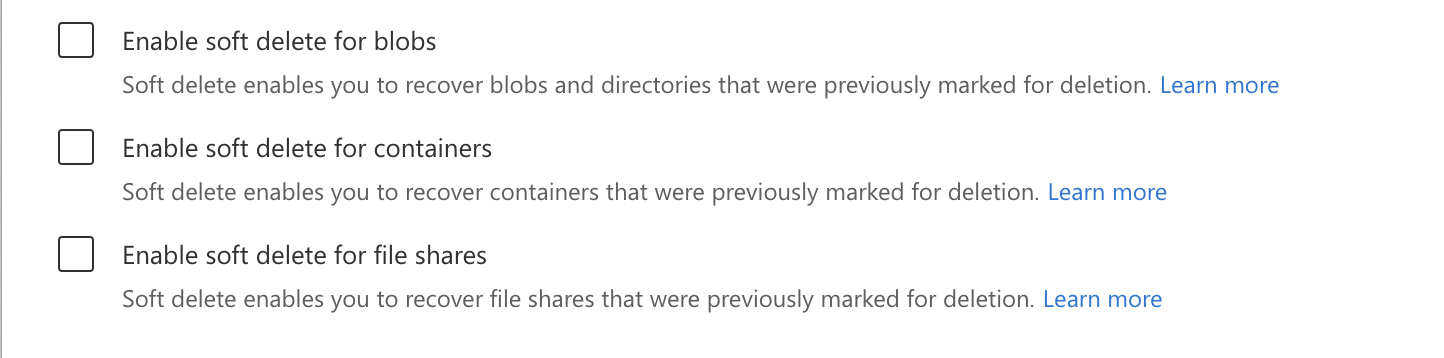
5. In the "Data protection" settings, you must turn off **Enable soft delete for blobs**, **Enable soft delete for containers**, and **Enable soft delete for file shares**.
4. In the "Networking" settings, you may limit "Network access" to either **Enable public access from all networks** or **Enable public access from selected virtual networks and IP addresses**. If the latter is selected, be sure to add the service's static IP to the address range of the chosen virtual network. All other settings can use the default selections.
**Network allowlisting**
Cloud-hosted (US): `35.192.85.117/32`
Cloud-hosted (EU): `104.199.49.149/32`
If private-cloud or self-hosted, contact your Thanx representative for the static egress IP.
5. In the "Data protection" settings, you must turn off **Enable soft delete for blobs**, **Enable soft delete for containers**, and **Enable soft delete for file shares**.
 6. Once the remaining options have been configured to your preference, click **Create**.
## Step 2: Create container and access token
1. In the Azure portal, navigate to the **Storage accounts** service and click on the account that was created in the previous step.
2. In the navigation pane, under "Data storage", click **Containers**. Click **+ Container**, choose a name for the container, and click **Create**.
**Recommendation: dedicated container for data transfers**
Using a unique container for these transfers prevents resource contention with other workloads, avoids accidental data loss from mixed lifecycle or cleanup rules, and improves security by reducing surface area and enabling tighter, destination-scoped policies.
3. In the navigation pane, under "Security + networking", click **Shared access signature**.
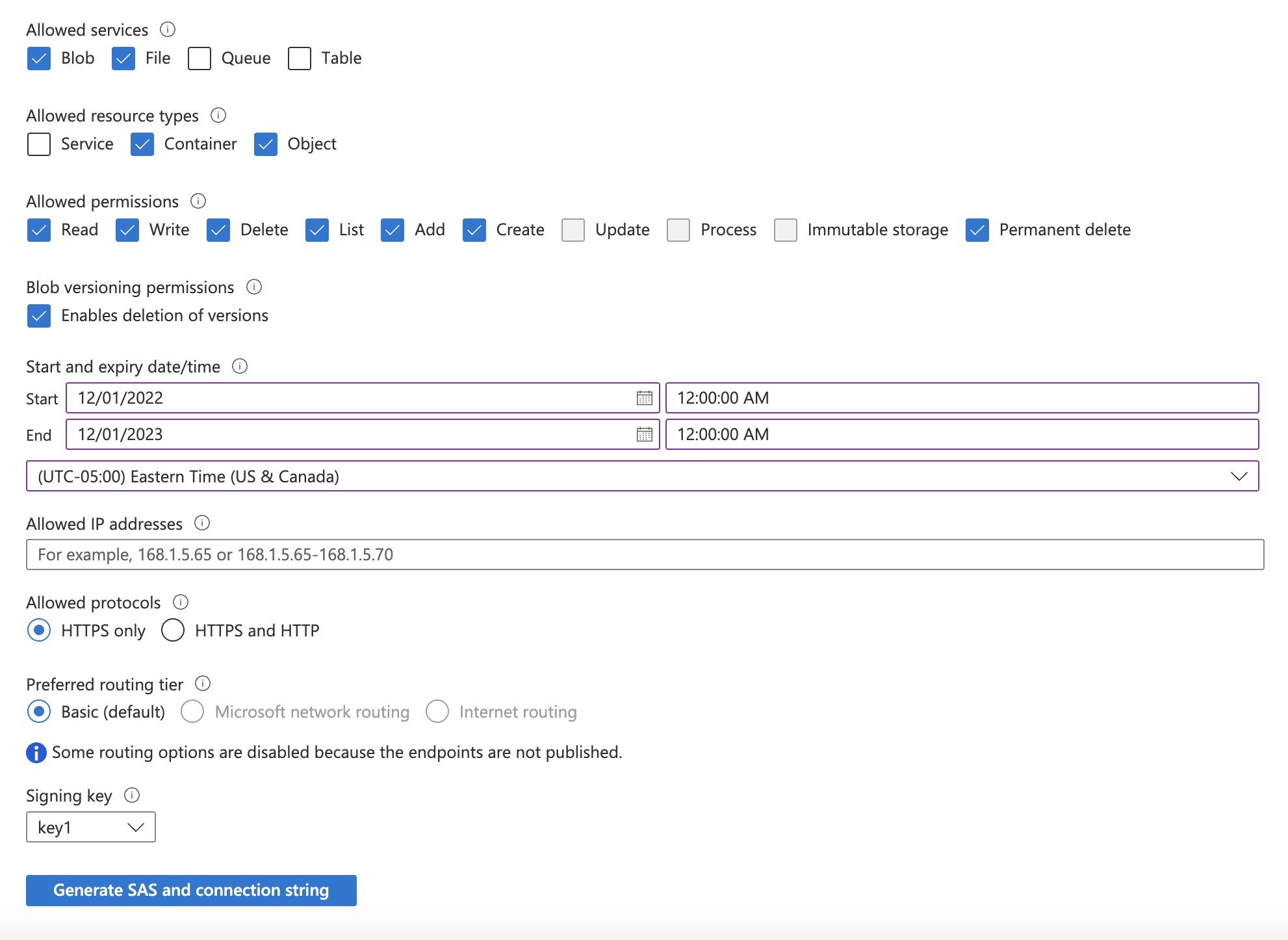
4. Update the required accessible services and permissions:
1. Under "Allowed services": select **Blob** and **File**.
2. Under "Allowed resource types": select **Container** and **Object**.
3. Under "Allowed permissions": select **Read**, **Write**, **List**, **Add**, and **Create** (optionally select **Delete** and **Permanently Delete** if you want connection tests to automatically clean up their test files).
5. Select a "Start and expiry date/time" based on your security posture (e.g., set the expiration date 6 months into the future), and click **Generate SAS and connection string**.
6. Make a note of the **SAS token** that is generated.
6. Once the remaining options have been configured to your preference, click **Create**.
## Step 2: Create container and access token
1. In the Azure portal, navigate to the **Storage accounts** service and click on the account that was created in the previous step.
2. In the navigation pane, under "Data storage", click **Containers**. Click **+ Container**, choose a name for the container, and click **Create**.
**Recommendation: dedicated container for data transfers**
Using a unique container for these transfers prevents resource contention with other workloads, avoids accidental data loss from mixed lifecycle or cleanup rules, and improves security by reducing surface area and enabling tighter, destination-scoped policies.
3. In the navigation pane, under "Security + networking", click **Shared access signature**.
4. Update the required accessible services and permissions:
1. Under "Allowed services": select **Blob** and **File**.
2. Under "Allowed resource types": select **Container** and **Object**.
3. Under "Allowed permissions": select **Read**, **Write**, **List**, **Add**, and **Create** (optionally select **Delete** and **Permanently Delete** if you want connection tests to automatically clean up their test files).
5. Select a "Start and expiry date/time" based on your security posture (e.g., set the expiration date 6 months into the future), and click **Generate SAS and connection string**.
6. Make a note of the **SAS token** that is generated.
 ## Step 3: Add your destination
Securely share your **storage account name**, **container name**, your chosen **folder name** for the data, and your **Storage account SAS token** with us to complete the connection.
## Permissions checklist
* The SAS token includes read, write, list, add, and create permissions (delete and permanently delete are optional and only needed for automatic test-connection cleanup).
* The container exists in the intended account and region.
* If using network restrictions, the data-syncing service's egress IP is allowed.
**Connection test file cleanup (optional)**
By default, a connection test runs against the destination during initial configuration. This test writes temporary artifacts under the prefix `_test_connection/` (at either the container root, or inside the custom folder prefix configured on the destination, if present).
If you do not grant delete permissions, the connection test still succeeds, but these test files remain in your container. To clean them up automatically, configure an Azure Lifecycle Management rule on your storage account to delete blobs matching the `_test_connection/` prefix (or `/_test_connection/` if a custom folder was configured) after 1 day, or delete them manually.
## FAQ
Data lands in Hive-style partitions per model: `//dt=/_.`. To write to the container root, enter `.` as the folder name.
Parquet (default and recommended), CSV, and JSON/JSONL.
Files are automatically split; multiple files may be written per model per transfer.
Each transfer writes a manifest file per model under `_manifests`, in the format `_manifests//dt=/manifest_{transfer_id}.json`.
Object storage is append-only. The change detection process uses a lookback window to ensure no data is missed, which can create duplicates. Downstream pipelines should deduplicate on primary keys, prioritizing the most recent transfer window; manifest files can help bound the set of files to read.
There are no explicit size or row limits for Blob Storage; files are split automatically based on volume and performance heuristics.
This documentation is built and hosted on [Mintlify](https://mintlify.com), a developer documentation platform.
## Step 3: Add your destination
Securely share your **storage account name**, **container name**, your chosen **folder name** for the data, and your **Storage account SAS token** with us to complete the connection.
## Permissions checklist
* The SAS token includes read, write, list, add, and create permissions (delete and permanently delete are optional and only needed for automatic test-connection cleanup).
* The container exists in the intended account and region.
* If using network restrictions, the data-syncing service's egress IP is allowed.
**Connection test file cleanup (optional)**
By default, a connection test runs against the destination during initial configuration. This test writes temporary artifacts under the prefix `_test_connection/` (at either the container root, or inside the custom folder prefix configured on the destination, if present).
If you do not grant delete permissions, the connection test still succeeds, but these test files remain in your container. To clean them up automatically, configure an Azure Lifecycle Management rule on your storage account to delete blobs matching the `_test_connection/` prefix (or `/_test_connection/` if a custom folder was configured) after 1 day, or delete them manually.
## FAQ
Data lands in Hive-style partitions per model: `//dt=/_.`. To write to the container root, enter `.` as the folder name.
Parquet (default and recommended), CSV, and JSON/JSONL.
Files are automatically split; multiple files may be written per model per transfer.
Each transfer writes a manifest file per model under `_manifests`, in the format `_manifests//dt=/manifest_{transfer_id}.json`.
Object storage is append-only. The change detection process uses a lookback window to ensure no data is missed, which can create duplicates. Downstream pipelines should deduplicate on primary keys, prioritizing the most recent transfer window; manifest files can help bound the set of files to read.
There are no explicit size or row limits for Blob Storage; files are split automatically based on volume and performance heuristics.
This documentation is built and hosted on [Mintlify](https://mintlify.com), a developer documentation platform.